
I know Claude Code is one of the best AI coding tools you can use right now, whether you run it in the terminal or inside the Claude desktop app. The catch is that Anthropic doesn’t include it in the free Claude plan, so you normally need at least the $20 a month Pro plan to use it at all.
So if you’re a free user who wants Claude Code without paying for a subscription, this guide is mainly for you. I’ll show you how to use Claude Code free with the real app, and you won’t need a GPU or a credit card to do it.
Just keep in mind that you aren’t getting Anthropic’s own Claude models for free this way. You still get the Claude Code app you know, but the answers come from free models hosted by NVIDIA or OpenRouter.
Paid users can get something out of this too. If you’re on a Claude plan and hit your usage cap halfway through a fix, you can move to the free models and keep going in the same repo. Once your limit resets, you can go right back to Claude.
Can You Use Claude Code for Free?
Yes, Claude Code works for free once you send its requests to free hosted models in place of Anthropic’s own servers. The easiest way to do that is a small open-source tool called Free Claude Code (FCC), which runs on your computer and connects Claude Code to providers like NVIDIA NIM or OpenRouter.
So while the answers come from a different model, the Claude Code app and your workflow stay the same. On top of that, FCC can connect the Claude desktop app and the VS Code extension too.
How Does the Free Setup Work?
Behind the scenes, Claude Code sends every request to whatever address is stored in its ANTHROPIC_BASE_URL setting, and normally that’s Anthropic’s own API. But if you point that address at a proxy on your own machine, the proxy can hand the request to a different model and send the answer back in a format Claude Code understands.
That’s exactly what FCC does for you. Claude Code has four model slots named after Anthropic’s models (Fable, Opus, Sonnet, and Haiku), and FCC lets you fill each one with a different free model.
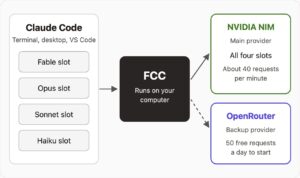
Fable and Opus handle the hard planning work, and Haiku takes care of quick, simple tasks. So you can give your strongest free model the Fable and Opus slots and let a fast, light model cover Haiku.
That’s also why you don’t need a GPU. All the heavy work happens on NVIDIA’s or OpenRouter’s servers, so your computer only runs Claude Code and a small Python server. In fact, Anthropic lists just 4 GB of RAM as the minimum for Claude Code itself.
What Do You Need Before You Start?
The good news is that the list is short, and nothing on it costs money:
- A Supported Computer: Any Mac on macOS 13 or newer will do. On Windows, you’ll want Windows 11 or a fairly recent Windows 10 (version 1809 or later), and Linux users need something like Ubuntu 20.04 or Debian 10 at minimum.
- A Free NVIDIA Developer Account: Your main API key comes from here, and it’s the one account on this list you can’t skip. NVIDIA sometimes asks for a phone number during sign-up, so keep yours handy.
- An OpenRouter Account (Optional): A free OpenRouter account gives you a second pool of free models, and that helps whenever NVIDIA gets busy.
- Git: With Git installed, you can undo the agent’s changes with one command if a free model makes a mess.
- The Claude Desktop App (Optional): If you’d rather not work in a terminal, you can download the app from claude.com/download and connect it to FCC later.
On Windows, I’d also install Git for Windows. Claude Code works without it, but it then runs commands through PowerShell, and a lot of scripts and tutorials out there assume Bash.
How Do You Set Up Claude Code for Free With FCC?
Now, if you’ve read older guides for this setup, you’ve probably seen a long list of manual steps, from cloning the repo to editing a .env file by hand. FCC has changed a lot since then, and with its one-line installer and browser-based Admin UI, most of that work is gone.
Here’s how the setup works as of November 2026.
Step 1: Install Claude Code
If Claude Code is already on your computer, you can skip to Step 2. For everyone else, Anthropic’s own installer is the way to go. I’d pick it over Homebrew for one reason: it updates Claude Code automatically, and the Homebrew version doesn’t.
On a Mac or Linux machine (or inside WSL), paste this command into your terminal and hit Enter.
curl -fsSL https://claude.ai/install.sh | bashWindows users should paste this one into PowerShell, because the plain CMD window needs a different command.
irm https://claude.ai/install.ps1 | iexThe installer doesn’t show any progress while it downloads, so give it a minute. After that, open a brand-new terminal and run this check, and a version number means it’s installed.
claude --versionA “command not found” error right after installing is pretty common, and it usually means your terminal hasn’t picked up the new install location yet. Opening a fresh terminal window fixes it most of the time.
You also don’t need to sign in to a Claude account at this point. And if you’d rather skip this step entirely, the FCC installer in Step 2 can install Claude Code for you when it doesn’t find it.
Step 2: Install Free Claude Code
FCC is a free, open-source project on GitHub from the developer Alishahryar1, released under the AGPL-3.0 license. Keep in mind that it’s an independent tool, so Anthropic doesn’t make or endorse it.
Plus, the installer sets up uv (a Python tool manager) if it’s missing and uses it to get the right Python version. That means you don’t have to install either one yourself.
Mac and Linux users can install FCC by running this command in a terminal.
curl -fsSL "https://raw.githubusercontent.com/Alishahryar1/free-claude-code/main/scripts/install.sh" | shWindows users need this PowerShell version instead.
& ([scriptblock]::Create((irm "https://raw.githubusercontent.com/Alishahryar1/free-claude-code/main/scripts/install.ps1")))From there, the installer asks a couple of quick questions as it runs.
- If Claude Code isn’t installed yet, it asks whether you want to install it, so say yes.
- It also asks whether to enable RTK + Headroom token optimization, and it’s fine to answer no for now.
WARNING: Piping a script from the internet straight into your shell gives it full access to your user account, so open the install script in your browser first and skim through it. That’s a good habit with any community tool you install this way.
Step 3: Get a Free NVIDIA NIM API Key
For the main model, NVIDIA NIM is my first pick. NVIDIA runs a big catalog of open models on its own GPUs, including its own Nemotron models and options like GLM and DeepSeek, and developers can call many of them for free.
- Head over to build.nvidia.com and log in, and new users can sign up on the same page for free.
- The key page lives under Settings > API Keys, and that’s where you generate a new one.
- Name it something like
claude-codeso you’ll know which key to delete if you ever stop using FCC, then set an expiration date. - Copy the key right away, because it starts with
nvapi-and NVIDIA won’t show you the full key again.
Step 4: Start the Server and Add Your Key
Whenever you use Claude Code through FCC, its server needs to be running. On Windows and macOS, you start it by opening the Free Claude Code app from the Start menu or the Applications folder.
Linux users start it from a terminal instead and keep that window open while they work.
fcc-server- Once the server starts, open the Admin UI address from the server log in your browser.
- Go to Providers and click Add key next to NVIDIA NIM.
- Paste your
nvapi-key and click Save. - Leave
MODELon the defaultnvidia_nim/nvidia/nemotron-3-ultra-550b-a55b, or search the dropdown for another model. - Click Apply to save your changes.
That MODEL value works as the fallback for every request. So if you never touch the per-slot settings, all four Claude Code slots will simply use it.
Step 5: Map Free Models to Fable, Opus, Sonnet, and Haiku
This step is optional, but it’s where the setup gets a lot better. FCC gives every slot its own setting, so MODEL_HAIKU controls the Haiku slot, MODEL_OPUS controls Opus, and the same goes for MODEL_FABLE and MODEL_SONNET.
Keep this cheat sheet open while you fill them in. Every model in it was on NVIDIA’s free list in late October 2026.
| Slot | What It Handles | Best Provider | Free Model to Try |
|---|---|---|---|
| Fable | The hardest, longest tasks | NVIDIA NIM | nvidia_nim/nvidia/nemotron-3-ultra-550b-a55b |
| Opus | Planning and complex reasoning | NVIDIA NIM | nvidia_nim/nvidia/nemotron-3-ultra-550b-a55b |
| Sonnet | Everyday coding and edits | NVIDIA NIM | nvidia_nim/z-ai/glm-5.3-flash |
| Haiku | Quick, simple tasks | NVIDIA NIM | nvidia_nim/nvidia/nemotron-3.5-lightning-30b-a3b |
The idea is to spend NVIDIA’s biggest free model on the slots that plan the work and give Haiku a small, fast model, since it gets called for lots of tiny jobs. OpenRouter stays out of the table on purpose, because its free cap of 50 requests a day would run dry quickly on any single slot.
Most of the time you’ll just pick from the dropdown, though you can also type a model in by hand as provider-id/model-id, like the IDs in the table. If you choose None, that slot goes back to using the main MODEL.
Adding an OpenRouter key under Providers still pays off as a backup. Its open_router/openrouter/free option lets OpenRouter pick an available free model for you, and that’s handy when NVIDIA starts returning rate-limit errors.
Step 6: Launch Claude Code in Your Terminal
Once your models are set, open a terminal in your project folder and start Claude Code through FCC’s launcher. It starts the server automatically if it isn’t running yet, and Claude Code opens already connected to your free models.
fcc-claudeA tiny project makes the best first test, so try asking for a tic-tac-toe game in a single HTML file. When the new file shows up in your folder and the game opens in your browser, you’ll know the free model is doing the work.
You’ll probably bump into older guides that point ANTHROPIC_BASE_URL at port 8082 by hand, and that trick dates back to earlier FCC versions. The current launcher picks the right address for you, so there’s no reason to set it yourself anymore.
Step 7: Connect the Claude Desktop App (Optional)
If you prefer working in the Claude desktop app, FCC can connect that too. Even so, FCC can only switch the app over while it’s completely closed, and simply closing the window doesn’t count.
- Quit Claude completely. On a Mac, that means pressing Cmd + Q, because the red close button leaves the app running.
- In the FCC Admin UI, open Integrations and click Connect on the Claude Desktop card.
- Reopen the Claude desktop app, and it will now use your FCC models.
Whenever you want your normal Claude account back, quit the app again and disconnect it on the same card. From then on, the desktop app uses its usual Claude sign-in again.
What If You Already Pay for Claude and Hit Your Limit?
And this setup is just as handy if you already pay for Claude. Even on Pro, Max, or Ultra, Claude Code has usage limits, and it’s frustrating when one runs out halfway through a fix.
Since your code and Git history stay right where they are, you can open a terminal in the same project folder and start the free setup there.
fcc-claudeOnce it opens, ask it to review your uncommitted changes before it carries on with the fix. Then, once your Claude limit resets, you can go back to Anthropic’s models with the regular command.
claudeDesktop app users can simply disconnect it in FCC once the limit resets. And because a free model may not handle a tricky multi-file fix as well as Claude does, it helps to give it smaller, clearer tasks until then.
Which Free Models Should You Pick for Each Slot?
The most important rule is to pick models that support tool calling, since that’s how Claude Code reads and edits your files or runs commands. A model without tool support can still chat with you, but you’ll see it describe changes without actually making them.
On NVIDIA’s catalog, you can filter by Free Endpoint to see only the models you can call without paying, and before you commit to one, check that its description mentions tool or function calling. Over on OpenRouter, free models have :free at the end of their ID.
Both sites rotate their free models often, though. NVIDIA dropped Kimi K3 and the full GLM 5.3 from its free list in October 2026 alone, so check what’s live today instead of copying a model name from an old video.
One thing I’d correct from a lot of tutorials is the idea that DeepSeek’s own API is free. It’s pay-as-you-go, and even though it’s very cheap per token, it still costs money. If you want DeepSeek at $0, use nvidia_nim/deepseek-ai/deepseek-v4.1-flash through NVIDIA instead.
Is It Really Unlimited?
Not really, and I’d rather you hear that now than halfway through a big project. What you do get is no monthly bill and limits that are generous enough for normal solo coding:
- NVIDIA NIM: Developers on NVIDIA’s own forum consistently report a free limit of about 40 requests per minute, and it’s shared across every model on your key. Moderators there have also said there’s no official way to raise that limit on the free tier.
- OpenRouter Free Models: Every account gets 20 requests per minute on
:freemodels. The daily cap is 50 requests until you’ve bought at least 10 credits, and after that, it goes up to 1,000 free requests a day.
Those numbers sound big, but one Claude Code task is rarely just one request. A single “fix this bug” prompt can fire off a dozen calls as the agent reads your files and tests its changes, so 50 OpenRouter requests a day go quickly.
NVIDIA’s 40 a minute rarely gets in the way, though. That’s why I’d make NVIDIA your main provider and keep OpenRouter as a backup.
What About Ollama?
You might also see Ollama recommended as the easiest free option, since this one command connects it to Claude Code without any proxy.
ollama launch claudeBut that advice is now out of date for Ollama’s cloud models.
As of November 2026, Ollama’s pricing page no longer lists a free plan. Its $0 option is now Pay as you go with no included usage, so every request to a cloud model like kimi-k2.7-code:cloud costs credits, and the paid plans start at $20 a month.
Local Ollama models are still completely free, but they run on your own hardware. Ollama’s docs ask for a context length of at least 64k for Claude Code, and most budget laptops can’t run a model like that at a usable speed. For most people, that makes FCC with NVIDIA the better free route.
How Do You Keep the Free Setup Safe?
Since free models change where your code goes, it’s worth thinking about safety for a minute. Your prompts and file contents go to whichever provider runs the model, and some free endpoints log requests or use them to improve their models.
For that reason, I wouldn’t send client code, API keys, or anything under an NDA through a free endpoint without reading that provider’s data policy first.
Claude Code also has a built-in sandbox I’d turn on. With auto-allow switched on through /sandbox, Claude Code stops asking permission for every sandboxed command. That’s a fair trade, because those commands can only write to your project folder unless you give them more room.
Windows users will need WSL 2 for this, since the sandbox doesn’t run on regular Windows. On Linux or WSL 2, install the bubblewrap and socat packages first, or Claude Code quietly runs commands without the sandbox.
One detail in Anthropic’s docs is easy to miss: the sandbox still lets commands read most of your machine, including folders like ~/.ssh. So it’s great at stopping unwanted changes, but it won’t stop a command from reading your secrets.
A lot of guides also push the --dangerously-skip-permissions flag, and the name tells you most of what you need to know. I wouldn’t touch it outside a container or a throwaway virtual machine, since it lets the agent run any tool without checking with you.
Before every big task, a quick Git commit is the other safety net I’d lean on. That way, if a free model makes a mess, this one command throws away its edits to every file Git already tracks.
git checkout .Common Problems and How to Fix Them
Most problems with this setup come from the free models themselves and have little to do with Claude Code. FCC’s own docs warn about a couple of these, and the rest come straight from how free models tend to behave:
- 429 Too Many Requests: This error means you’ve hit a provider’s rate limit. Waiting a minute usually clears it, and if it keeps happening, pointing one slot at OpenRouter takes some load off NVIDIA, as long as you remember OpenRouter’s 50-a-day free cap.
- A Model That Talks but Never Edits Files: When this happens, the model probably doesn’t support tool calling. Switching that slot to a model that lists tool or function calling support should fix it.
- A Model That Suddenly Stops Working: NVIDIA removes free models without much warning, so a model that worked last week can start returning errors. Picking a different model from the Free Endpoint list is usually the fastest fix.
- Context Length Errors: These show up when the model’s window is too small for Claude Code’s prompt. You can fix it by choosing a model with at least 64k of context, or by running
/compactto shrink the conversation. - Claude Code Asking You to Log In: In the terminal, this usually means Claude Code was started the regular way, so close it and start it again with FCC’s launcher from Step 6. In the desktop app, it usually means the app wasn’t fully quit before you clicked Connect.
- Usage Drained on Two Providers: FCC’s docs warn that when fallback models are set, one failed request can use up quota on more than one provider before it succeeds. If you want to protect a small daily quota, it’s safer to turn fallbacks off.
Which Free Claude Code Setup Should You Use?
If you’re a free user, go with FCC and an NVIDIA NIM key, then keep OpenRouter as a backup for the days NVIDIA hits its limit. And if you already pay for Claude, keep the same setup ready for the days your limit runs out, then switch back once it resets.
Once you’re shipping real projects every day, though, the $20 Pro plan is worth a look, since none of these free models fully match Claude on hard work that spans many files.
Frequently Asked Questions
No, you’re using the real Claude Code app with a different model behind it. Claude Code will still show names like “Opus” or “Sonnet” in its menu, but those slots are filled by whichever free model you picked in FCC.
Claude Code officially supports custom API endpoints through settings like ANTHROPIC_BASE_URL, and tools like Ollama document the same kind of setup on their own sites. The main thing is to follow each model provider’s terms and never share or resell access to your free keys.
Yes, FCC can connect to the Claude Code extension for VS Code. Open Integrations in the FCC Admin UI and click Connect on the VS Code card, and after you reload VS Code, the extension will use your FCC models.
No card is needed for NVIDIA NIM or OpenRouter’s free models. The only time money comes into it is if you want OpenRouter’s higher limit of 1,000 free requests a day, since that needs a one-time purchase of at least 10 credits. Am I Using the Real Claude Model With This Setup?
Is It Against Anthropic’s Rules to Use Claude Code With Other Models?
Does the Free Setup Work in VS Code?
Do I Need a Credit Card for Any of This?


He is a computer engineer by day and a gamer by night. He has played many different games, like retro games like Contra, classic Mario, to AAA games. He likes to share his passion for gaming through his guides.